
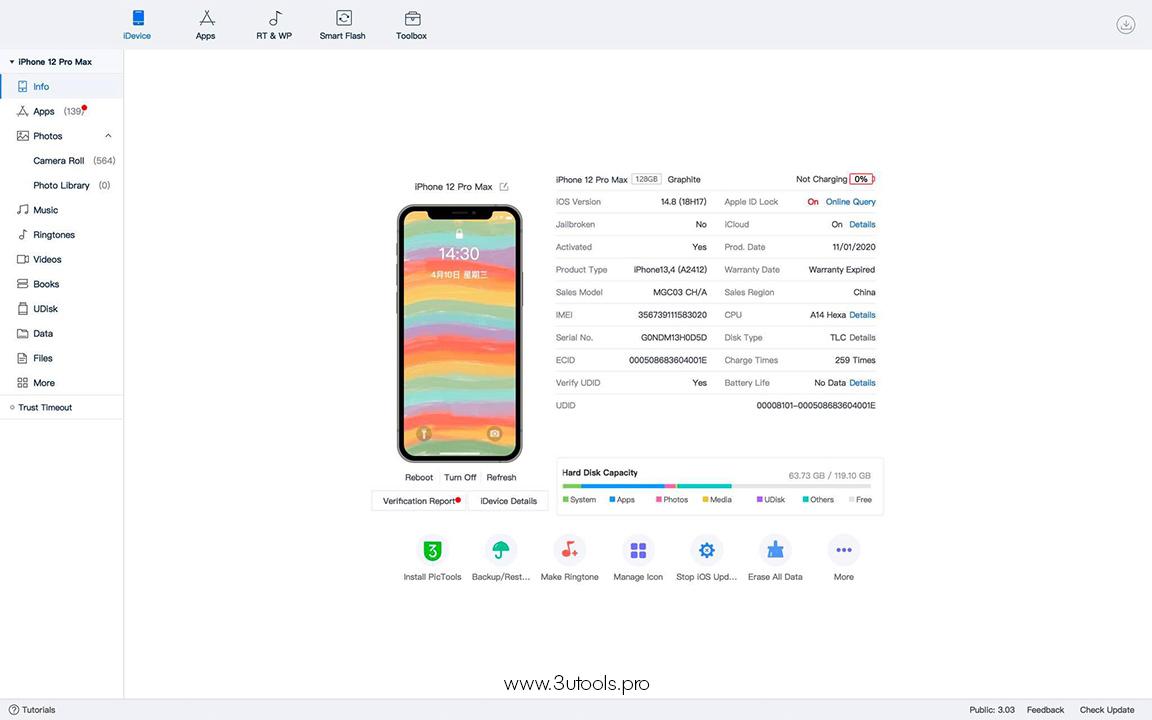
Many iPhone and iPad users search for a simple tool to manage files, flash firmware, back up data, and control iOS devices from a computer. One popular tool is 3uTools. It is widely used on Windows computers because it combines many iPhone management features in one place.
However, Mac users often face one common problem: there is no official native version of 3uTools for macOS. This creates confusion for people searching for “3uTools for Mac download.”
This guide explains everything clearly. It covers whether 3uTools works on Mac, how to use it on macOS, safe download methods, installation options, alternatives for Mac users, common problems, and useful tips for better device management.
What Is 3uTools?
3uTools is an all-in-one iOS management tool designed mainly for Windows PCs. It helps users:
- Flash iOS firmware
- Back up iPhones and iPads
- Transfer photos, music, and videos
- Manage apps
- Check battery health
- Access jailbreak tools
- View detailed device information
The software became popular because it combines many iPhone utilities in one dashboard.
Is There an Official 3uTools for Mac Version?
At the moment, there is no official native macOS version of 3uTools.
The software is built mainly for Windows systems. This means Mac users cannot install it directly like regular macOS apps.
This is the biggest reason many users search for “3uTools Mac download.”
Can 3uTools Run on Mac?
Yes, but not directly.
Mac users can still run 3uTools using several methods:
- Virtual machine software
- Windows emulation tools
- Boot Camp on Intel Macs
- Remote Windows access
Each method has advantages and limitations.
How to Download 3uTools for Mac
Since there is no native Mac version, users usually download the Windows version and run it through compatibility tools.
Method 1: Use a Virtual Machine
This is one of the safest methods.
Popular virtual machine software includes:
- Parallels Desktop
- VMware Fusion
- VirtualBox
Steps
Step 1: Install Virtual Machine Software
Download and install virtualization software on the Mac.
Step 2: Install Windows
Create a Windows virtual machine inside macOS.
Step 3: Download 3uTools
Download the Windows version of 3uTools from the official website.
Step 4: Connect the iPhone
Connect the iPhone using a USB cable and allow device permissions.
Step 5: Open 3uTools
Launch the software inside Windows.
Best For
- Advanced users
- M1, M2, and M3 Macs
- Stable iPhone management
Method 2: Use Wine on macOS
Wine allows some Windows apps to run on macOS.
However, 3uTools may not work perfectly because it depends heavily on device drivers and USB communication.
Pros
- No full Windows installation
- Less storage usage
Cons
- Unstable performance
- Driver problems
- Limited iPhone detection support
This method is not recommended for beginners.
Method 3: Use Boot Camp on Intel Macs
Intel-based Macs support Boot Camp.
This allows users to install Windows directly on the Mac.
How It Works
- Install Windows through Boot Camp
- Boot into Windows
- Install 3uTools normally
Important Note
Boot Camp does not work on Apple Silicon Macs such as:
- M1 Macs
- M2 Macs
- M3 Macs
Does 3uTools Work on Apple Silicon Macs?
Apple Silicon Macs use ARM architecture. This includes:
- MacBook Air M1
- MacBook Pro M2
- iMac M3
Because 3uTools is a Windows x86 application, compatibility can be difficult.
Best Solution for Apple Silicon
Using Parallels Desktop with Windows ARM is currently the most reliable option.
In many cases, the software works, but USB device support may vary depending on the macOS version and virtualization settings.
Safe Download Tips
Many fake websites offer modified versions of 3uTools. Some may contain malware or unsafe installers.
Important Safety Tips
- Download 3utools for Mac dmg only from the official website
- Avoid cracked versions
- Do not disable Mac security protections unnecessarily
- Scan downloaded files before installation
- Keep macOS updated
A unique tip many experienced users follow is testing the installer inside a virtual machine before using it with a primary device.
Best Alternatives to 3uTools for Mac
Because there is no official macOS version, many users prefer native Mac alternatives.
1. Finder
Modern macOS versions already include iPhone management through Finder.
Features
- Device backup
- Restore iPhone
- File syncing
- Firmware updates
Best For
Basic iPhone management.
2. iMazing
iMazing is one of the best Mac alternatives.
Features
- Wireless backups
- File transfer
- Message export
- App management
- Battery information
Why Many Users Prefer It
The interface is simple and optimized for macOS.
3. AnyTrans
AnyTrans offers advanced iPhone data management.
Features
- Media transfer
- Backup management
- WhatsApp transfer
- iCloud management
4. Apple Configurator
Apple Configurator is useful for advanced device management.
Best For
- IT administrators
- Enterprise device setup
- iOS restoration
3uTools Features Mac Users Want Most
Even without native support, many Mac users still try to run 3uTools because of these features.
Easy Flashing
The software simplifies iOS firmware flashing.
Battery Health Reports
Users can quickly check:
- Battery cycles
- Capacity
- Charging history
Jailbreak Support
3uTools provides jailbreak-related tools and firmware resources.
Fast File Transfer
Photos, videos, and music can be transferred quickly.
Common Problems and Fixes
iPhone Not Detected
Solutions
- Use an original USB cable
- Unlock the iPhone
- Trust the computer
- Restart both devices
Virtual Machine USB Errors
Fixes
- Enable USB passthrough
- Update virtualization software
- Reconnect the iPhone
3uTools Crashes on Mac
Possible Reasons
- Incompatible Windows version
- Missing drivers
- Limited RAM allocation
Fix
Allocate more memory to the virtual machine.
Final Thoughts
3uTools remains a popular tool for iPhone management, but there is still no official native version for macOS.
Mac users can still use the software through:
- Virtual machines
- Windows emulation
- Boot Camp on Intel Macs
For most users, virtualization software such as Parallels Desktop offers the best balance between compatibility and ease of use.
However, native Mac alternatives like iMazing and Finder may provide a smoother and more stable experience for daily iPhone management.
Choosing the right option depends on the user’s goals, Mac hardware, and technical experience level.

 Arabic
 French
 Spanish
 Portuguese
 Deutsch
 Turkish
 Dutch
Dutch
 Italiano
 Russian
 Romaian
 Portuguese (Brazil)
 Greek
Greek